Apple Watch User Guide
- Welcome
- What’s new
- Run with Apple Watch
-
- Alarms
- Audiobooks
- Blood Oxygen
- Calculator
- Calendar
- Camera Remote
- ECG
- Medications
- Memoji
- Music Recognition
- News
- Now Playing
- Remote
- Shortcuts
- Siren
- Stocks
- Stopwatch
- Tides
- Timers
- Use the Tips app
- Translate
- Vitals
- Voice Memos
- Walkie-Talkie
- World Clock
- Copyright and trademarks
See timely widgets in the Smart Stack on Apple Watch
The Smart Stack suggests helpful information or actions that you can take depending on your context—like the time of day or your location. The Smart Stack also shows Live Activities for real-time updates on workouts, timers, and more. When the Smart Stack has an immediately useful suggestion, Apple Watch gently taps your wrist with a hint.
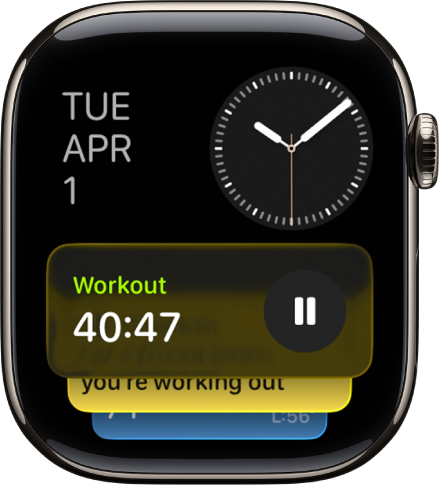
Open the Smart Stack
From the watch face, do any of the following:
Turn the Digital Crown upward.
Swipe up from the bottom of the screen.
Scroll to the widget you want to use, then tap it to open the associated app.
Tip: To access Music, Workouts, or Messages, scroll to the bottom of the Smart Stack.
See Live Activities
Live Activities—app activities in progress such as a workout, a timer, or music—appear at the top of the Smart Stack.
Do one of the following:
From the watch face: Tap the Live Activity at the top of the screen.
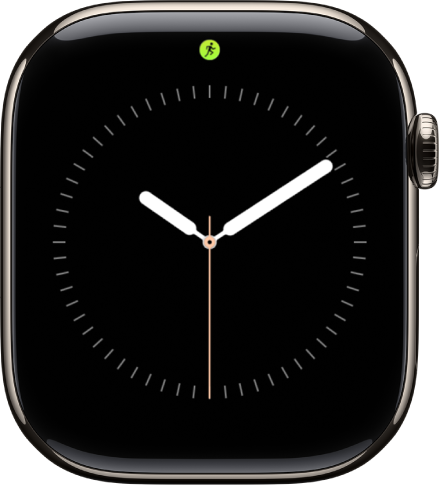
In the Smart Stack: Open the Smart Stack (if it’s not already open). If you have multiple Live Activities, scroll to the one you want to see.
To return to the watch face, press the Digital Crown.
By default, when a Live Activity is running, the Smart Stack remains open even when your wrist is down. To customize when and how Live Activities appear, go to the Settings app  , tap Smart Stack, tap Live Activities, then set any of the options.
See Smart Stack hints
Using on-device data and trends from your daily routine, Apple Watch gently taps your wrist with a hint when the Smart Stack has a suggestion that’s immediately useful for you. A small icon appears at the bottom of the watch face.
Do one of the following:
Open the hint: Tap the Smart Stack hint at the bottom of the watch face to open the Smart Stack.
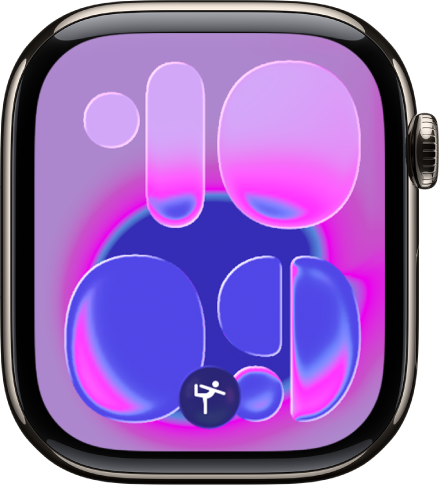
Mute the hint for 24 hours: Swipe down on the Smart Stack hint.
Note: For suggestions like workouts, it takes time for Apple Watch to learn your routine.
Customize the Smart Stack
You can add, remove, and rearrange the widgets in the Smart Stack. Some apps offer more than one widget, and some widgets can be customized so you can see what’s most important for you. For example, you can select a frequently used home accessory in the Home widget.
Scroll to the bottom, tap Edit, then do any of the following:
Add a widget: Tap
 , then choose a widget. With certain widgets, you can tap
  for customization options.
Remove a widget: Tap
 .
.Pin widgets: Tap
 on the right side of each widget you want to stay in a fixed position.
Reorder pinned widgets: Touch and hold a widget you want to move, then drag it to a new position.
When you’re finished, tap
 .
.