iPad User Guide
- iPad User Guide
- What’s new in iPadOS
- Supported models
-
- Wake and unlock
- Adjust the volume
- Change or turn off sounds
- Access features from the Lock screen
- Open apps on the Home screen
- Take a screenshot or screen recording
- Change or lock the screen orientation
- Change the wallpaper
- Zoom an app to fill the screen
- Drag and drop
- Search with iPad
- Use AirDrop to send items
- Perform quick actions
- Use and customize Control Center
- View and organize Today View
- Charge and monitor the battery
- Learn the meaning of the status icons
- Travel with iPad
-
-
- View photos and videos
- Edit photos and videos
- Edit Live Photos
- Edit Portrait mode photos
- Organize photos in albums
- Search in Photos
- Share photos and videos
- View Memories
- Find people in Photos
- Browse photos by location
- Use iCloud Photos
- Share photos with iCloud Shared Albums
- Use My Photo Stream
- Import photos and videos
- Print photos
- Shortcuts
- Stocks
- Tips
-
-
- Get started with accessibility features
-
-
- Turn on and practice VoiceOver
- Change your VoiceOver settings
- Learn VoiceOver gestures
- Operate iPad using VoiceOver gestures
- Control VoiceOver using the rotor
- Use the onscreen keyboard
- Write with your finger
- Use VoiceOver with an Apple external keyboard
- Type onscreen braille using VoiceOver
- Use a braille display
- Customize gestures and keyboard shortcuts
- Use VoiceOver with a pointer device
- Use VoiceOver in apps
- Zoom
- Magnifier
- Display & Text Size
- Motion
- Spoken Content
- Audio Descriptions
-
-
- Important safety information
- Important handling information
- Get information about your iPad
- View or change cellular settings
- Find more resources for software and service
- FCC compliance statement
- ISED Canada compliance statement
- Class 1 Laser information
- Apple and the environment
- Disposal and recycling information
- ENERGY STAR compliance statement
- Copyright
Play podcasts on iPad
In the Podcasts app  , you can play, pause, or skip ahead using the playback controls, set a sleep timer, and stream content to another device.
Ask Siri. Say something like: “Play the newest episode of ‘The Daily’ podcast.” Learn how to ask Siri.
Play a podcast
Tap an episode.
For more playback controls, tap the player to open the Now Playing screen.
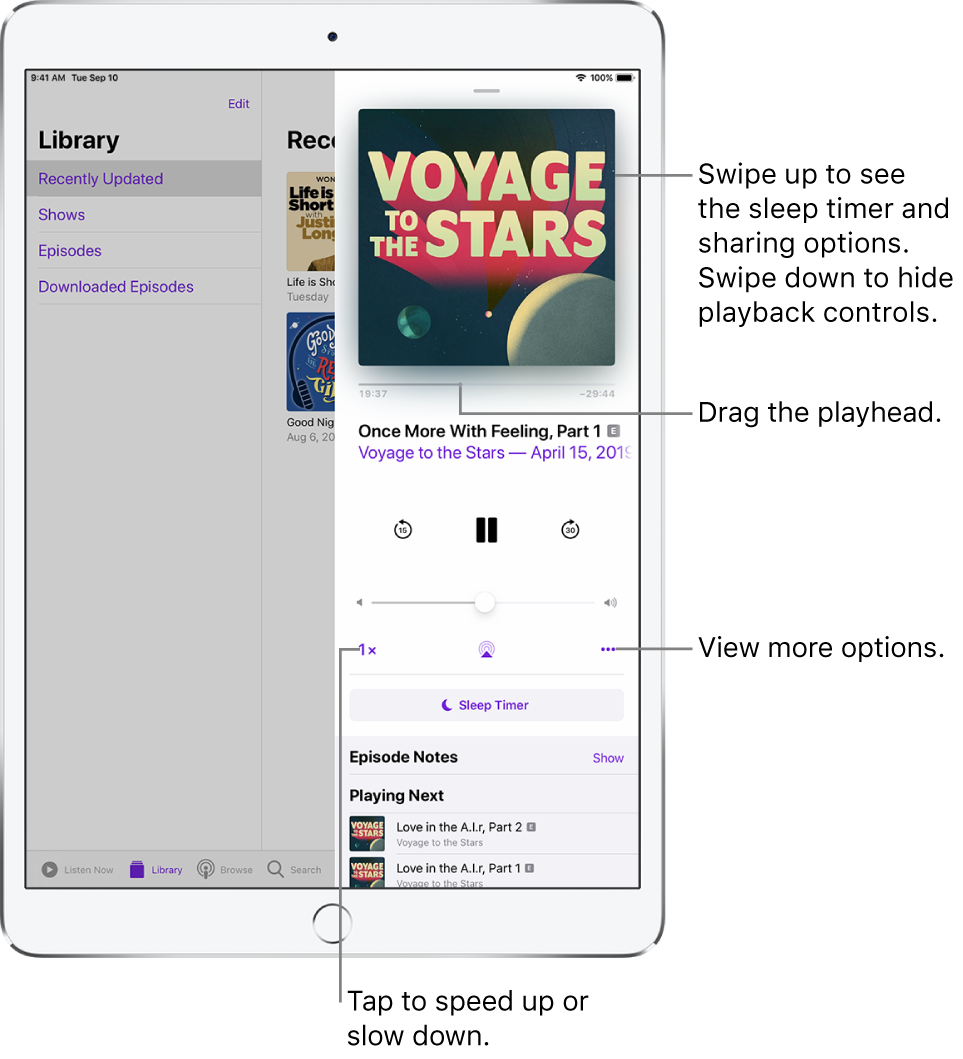
Use any of the following controls:
Control
Description

Play

Pause

Jump back 15 seconds

Jump forward 30 seconds

Choose a faster or slower playback speed


Choose more actions such as sharing the episode or adding it to your queue.
Tip: To jump to a specific time in the episode, drag the track position slider below the podcast artwork.
Ask Siri. Say something like: “Skip ahead 3 minutes.” Learn how to ask Siri.
Swipe up on the Now Playing screen to see the sleep timer, episode notes, and your Up Next queue.
To resume playing an episode, tap Listen Now. Episodes you haven’t finished are near the top of the list.