Play music on Apple Watch
Use the Music app to choose and play music on your paired iPhone, paired Bluetooth headphones or speakers, or the Apple Watch speaker (supported models). See Choose an audio destination on Apple Watch.
You can play music stored on Apple Watch, control music on your iPhone, and stream music from Apple Music if you’re a subscriber.
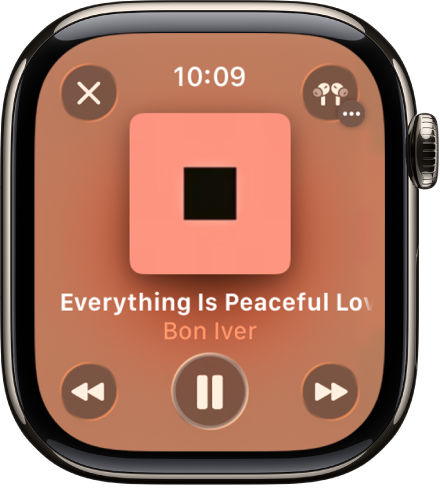
Siri: Ask Siri something like, “Play ‘Everything Is Peaceful Love’ by Bon Iver.” See Ask Siri to play audio.
Play music
After you connect Apple Watch to Bluetooth headphones or speakers, then follow these steps:
Go to the Music app
 on your Apple Watch.
Do any of the following:
Play music on your Apple Watch: Turn the Digital Crown to scroll through the Home screen, then tap an album, playlist, or category.
Use the Apple Watch app on your iPhone to choose which songs to add to Apple Watch.
Play music from your music library: From the Home screen, tap
 , tap Library, tap a category such as Playlists, Albums, Downloaded, or a recently added item, then choose the music you want to play.
Request music from Apple Music (Apple Music subscription required): Raise your wrist, then request an artist, album, song, genre, or portion of a song lyric.
Search the Apple Music library: From the Home screen, tap
, tap Search, enter what you’re looking for, then tap Search. Tap a result to play it.
Play music for you
If you’re an Apple Music subscriber, you can play music chosen just for you.
Go to the Music app
on your Apple Watch.Scroll down to view music you’ve recently added to your Apple Watch, as well as a curated feed of playlists and albums based on your likes and dislikes.
Tap a category, tap an album or playlist, then tap
 .
.
Open the queue
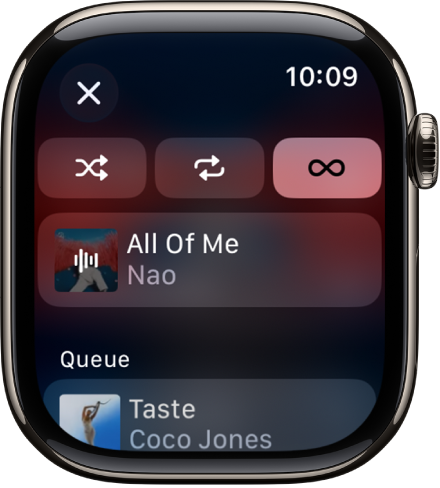
When playing music, you can see a list of upcoming songs in the queue.
Go to the Music app
on your Apple Watch.Play an album or playlist, tap
 , then tap Playing Next.
To play a track in the queue, tap it.
By default, Auto Play adds music to the end of the queue that’s similar to what you’re playing. To turn off Auto Play, tap  .
.
Note: When you turn off Auto Play on a device that uses your Apple Account—your Apple Watch, for example—it’s turned off only for that device. Other devices continue to use Auto Play until you turn it off on each one.
To add music you choose to the queue, swipe left on a song, playlist, or album; tap  ; then tap Play Next or Play Last. Music you choose to play last is added to the end of the queue.
Control playback
Turn the Digital Crown to adjust volume. Use these controls to play music on your Apple Watch and iPhone:
 | Play the current song. |
 | Pause playback. |
 | Skip to the next song. |
 | Skip to the beginning of the song; double-tap to skip to the previous song. |
Tip: To hide the controls, tap the Now Playing screen.
Shuffle or repeat music
Shuffle or repeat music from the playback screen: While viewing the playback screen, tap
, tap Playing Next, then tap  or
or  .
.Tap
twice to repeat a song.By default, if you’re an Apple Music subscriber, AutoPlay adds music similar to what you last played to the end of the queue. To turn off AutoPlay, tap
.
Shuffle music in your library: On the Now Playing screen, tap
, tap Library, tap Artists, Albums, or Songs, then tap Shuffle.
Play music on a different device
You can stream music from your Apple Watch not only to paired headphones, but also to other Bluetooth-compatible devices such as headphones and speakers. You can also control music on AirPlay-compatible devices such as HomePod speakers and Apple TV 4K.
On the Now Playing screen, tap at the top right, then do any of the following:
Connect to a Bluetooth device: Tap AirPlay, tap Connect a Device, then choose a Bluetooth device.
Connect to an AirPlay device: Tap AirPlay, tap Control Other Speakers & TVs, choose a device, then choose some music to play.
Quickly return to the Now Playing screen
From any screen in the Music app, tap  in the top-right corner. If the watch face is showing, turn the Digital Crown up, then tap the currently playing song in the Smart Stack or tap at the top of the screen.