
Find and buy books and audiobooks in Books on Mac
You can search the Book Store or Audiobook Store for something specific, browse by category, or choose from lists curated by Apple Books editors. Books also displays recommendations based on your previous selections. After you find the item you want, you can buy or preorder it.
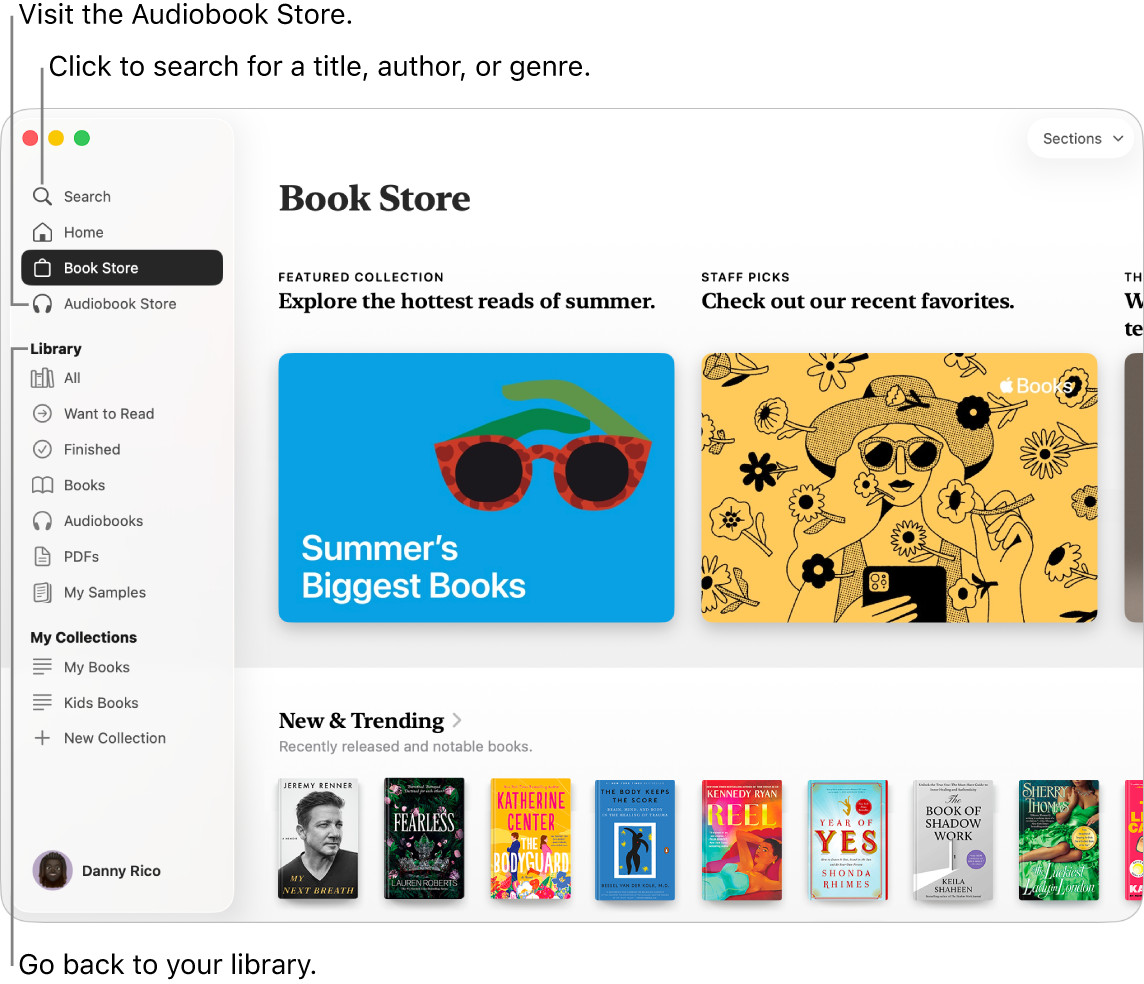
Note: You must sign in to your Apple Account in Books to get books or audiobooks. The Book Store and Audiobook Store aren’t available in all countries or regions. See the Apple Support article Availability of Apple Media Services.
Search for books or audiobooks
Go to the Books app
on your Mac.Click Search in the sidebar, click the search field, then start typing to see suggestions.
You can search by title, author, genre, or publisher.
Select a suggestion, or press Return to search for what you typed and filter results.
Tip: Filter your results by choosing All, Books, or Audiobooks below the search field.
Buy and preorder books
You can buy and preorder books from Home, the Book Store, and Audiobook Store.
In the Books app, Home is the place you’ll find a curated selection of books and audiobooks based on your reading and listening history. Browse Top Picks, Want to Read, Books You Might Like, and more to find your next read.
Note: You must sign in to your Apple Account in Books and have purchased at least one book or audiobook to see Top Picks and Books You Might Like in Home.

Go to the Books app
on your Mac.Click Home, Book Store, or Audiobook Store in the sidebar, then browse the sections.
Tip: To browse a specific section, click a section name, or click Sections in the top-right corner of the Book Store or Audiobook Store, then choose a section or genre—for example, Top Charts, Book Clubs, History, or Romance.
If you’re looking for something specific, you can also search for books or audiobooks.
When you find a book or audiobook you want to read or listen to, click the title of the book or audiobook, then do any of the following:
Buy the book: Click the price of the book or audiobook or the Get button.
Note: If the price is orange, the item hasn’t been released yet. To preorder the item, click the price.
If you have Family Sharing set up, and Ask to Buy is set for your account, when you click to get a book or audiobook, the Family Sharing organizer is asked to approve the purchase.
Sample or preview an item (if available): Click Sample for a book or Preview for an audiobook.
See more information: Scroll down to find a description, customer reviews, other books by the author, and more.