Export data to a data warehouse
Automate data exports from Stripe to Snowflake, Redshift, or Databricks.
Data Pipeline currently supports Snowflake (deployed on AWS, Azure, or Google Cloud), Amazon Redshift, and Databricks data regions.
| AWS Region | Snowflake | Amazon Redshift RA3 (with encryption) | Databricks |
|---|---|---|---|
| us-west-2 (Oregon) | |||
| us-east-2 (Ohio) | |||
| us-east-1 (N. Virginia) | |||
| us-west-1 (N. California) | |||
| ca-central-1 (Central Canada) | |||
| sa-east-1 (São Paulo) | |||
| eu-central-1 (Frankfurt) | |||
| eu-central-2 (Zurich) | |||
| eu-west-1 (Ireland) | |||
| eu-west-2 (London) | |||
| eu-west-3 (Paris) | |||
| eu-north-1 (Stockholm) | |||
| me-south-1 (Bahrain) | |||
| ap-southeast-1 (Singapore) | |||
| ap-southeast-2 (Sydney) | |||
| ap-southeast-3 (Jakarta) | |||
| ap-northeast-1 (Tokyo) | |||
| ap-northeast-2 (Seoul) | |||
| ap-northeast-3 (Osaka) | |||
| ap-east-1 (Hong Kong) |
Get started
Navigate to Reporting > Data management in the Stripe Dashboard, and go through the onboarding steps. After you accept the data share and complete onboarding, you can access your core Stripe data in Snowflake, Amazon Redshift, or Databricks within 12 hours. After the initial load, your Stripe data refreshes regularly.
Note
You can only have one warehouse account connected to your Stripe account.
How to onboard
Link your Snowflake account
First, send all your up-to-date Stripe data and reports through the Dashboard:
- On the Data Pipeline settings page in the Dashboard, click Sign up.
- From the drawer, select Snowflake, then click Continue.
- Enter your Snowflake Account Identifier, and then select the cloud provider on which your Snowflake account is deployed (AWS, Azure, or GCP).
- Select your region, and then click Next.
- Copy the SQL from the code block and insert it in a SQL worksheet in Snowflake warehouse and run the query to retrieve the unique value. Enter the value in the text box and click Subscribe.
Access your data share in Snowflake
After your core Stripe data becomes available (typically within 12 hours), access your data from your Snowflake account:
Navigate to your Snowflake account to accept the Stripe data share.
If your Snowflake cloud provider is deployed on AWS in one of these seven regions:
us-east-1: accept share from accountGSWUDFY_STRIPE_ AWS_ US_ EAST_ 1 us-west-2: accept share from accountJZA07263us-east-2: accept share from accountVM70738ca-central-1: accept share from accountTD26747eu-central-1: accept share from accountGSWUDFY-STRIPE_AWS_ EU_ CENTRAL_ 1 eu-west-1: accept share from accountGSWUDFY-STRIPE_AWS_ EU_ WEST_ 1 ap-southeast-2: accept share from accountKB26084
In Snowflake, have a user with
ACCOUNTADMINaccess go to Data > Shared Data. Under Ready to Get, go to the share calledSHARE_from the corresponding Stripe account. Then, click Get shared data to accept the share.[ACCOUNT_ IDENTIFIER] If your Snowflake cloud provider isn’t AWS, or if your AWS region isn’t one of the seven regions listed above:
- Your share comes from the
JZA07263account as a private listing. - In Snowflake, have a user with
ACCOUNTADMINaccess go to Data Sharing > External Sharing. - Locate the share from
JZA07263and follow the instructions as prompted by Snowflake.
- Your share comes from the
In the modal that opens, give the database a name (for example, “Stripe”), select the roles to grant access to (for example,
SYSADMIN), then click Get Data.Confirm that you can view your Stripe data in Data From Direct Shares and Databases. You can now query your Stripe data directly in Snowflake.
Change the warehouse account
To change the warehouse account your Stripe account is connected to:
- Turn off Data Pipeline from the Dashboard settings page.
- Sign up for Data Pipeline again using the steps detailed above for the new warehouse account you want to connect to.
To add another Stripe account to your warehouse account:
- Follow the sign up steps above for your new Stripe account.
- Use the same account identifier as above for the respective warehouse. To find your Account ID, go to the Dashboard settings page and locate ID under the Connected data warehouse section.
Query Stripe data in your data warehouse
In Snowflake, Amazon Redshift, and Databricks, your data is available as secure views. To query your data, follow the steps below.
View your available Stripe data by navigating to Views in the database you created. For each table, you can also see the available columns by clicking on the table and navigating to Columns.
Financial reports in Data Pipeline
To facilitate your financial close, you can access Stripe’s reports directly in your data warehouse.
Note
At this time, financial reports aren’t available for Amazon Redshift or Databricks.
Financial report templates have a FINANCIAL_ prefix and are available as views in your data warehouse.
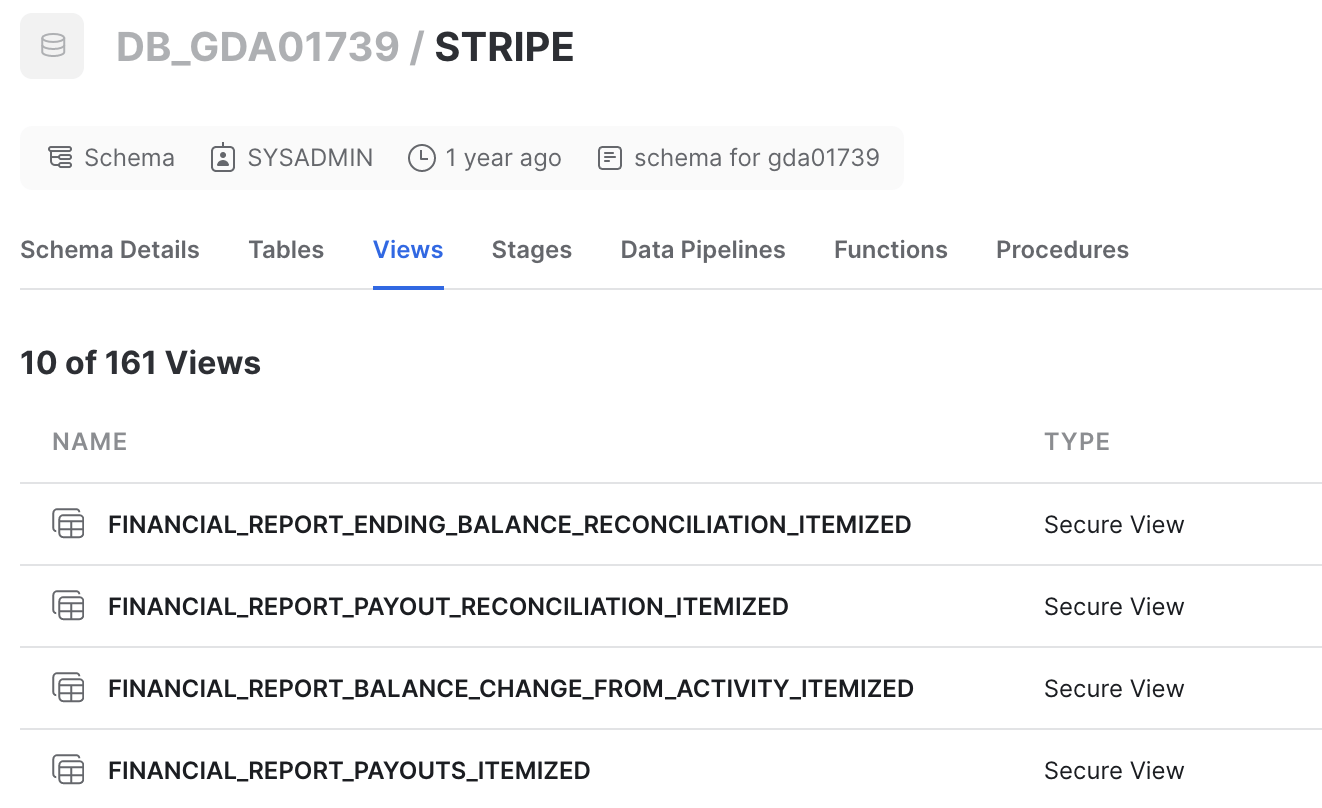
Generating financial reports in Snowflake
Generating financial reports from Data Pipeline requires setting a few custom variables. These are the same variables you set when generating the report through the Dashboard or API:
START_(varchar)—The starting date of the report (inclusive).DATE END_(varchar)—The ending date of the report (exclusive).DATE TIMEZONE(varchar)—The time zone of non-UTC datetime columns.
To set these variables and run the report query:
Create a new worksheet.
Set the database schema and required variables to your desired values.
-- set schema based on the name you gave your Stripe database
use schema db_name.stripe;
-- set financial report template variables
set (TIMEZONE, START_DATE, END_DATE) = ('UTC', '2021-09-01', '2021-10-01');
Caution
Run these lines of code separately before attempting to query tables that require them. Otherwise, you might receive an error that a session variable doesn’t exist.
If you’re using the Snowflake Connector for Python, set the session parameter
TIMEZONEwith theALTER SESSION SET TIMEZONE = 'UTC'command.After running the code that sets the necessary variables, query the view of the report you want to generate. For example, running:
select * from FINANCIAL_REPORT_BALANCE_CHANGE_FROM_ACTIVITY_ITEMIZED;Returns the same results that the itemized balance change from the activity report displays in the Dashboard or through the API:

Need support for a different file format?
If you want to upload files with a different structure or in a custom format, contact Stripe support.