About commits
Similar to saving a file that's been edited, a commit records changes to one or more files in your branch. Git assigns each commit a unique ID, called a SHA or hash, that identifies:
- The specific changes
- When the changes were made
- Who created the changes
When you make a commit, you must include a commit message that briefly describes the changes.
If the repository you are committing to requires commit signoffs, and you are committing in the web interface, you will automatically sign off on the commit. See Managing the commit signoff policy for your repository.
You can add a co-author on any commits you collaborate on. See Creating a commit with multiple authors or on behalf of an organization.
You can also create a commit on behalf of an organization. See Creating a commit with multiple authors or on behalf of an organization.
Rebasing lets you change a series of commits and can change the order of the commits in your timeline. See About Git rebase.
About commit branches and tag labels
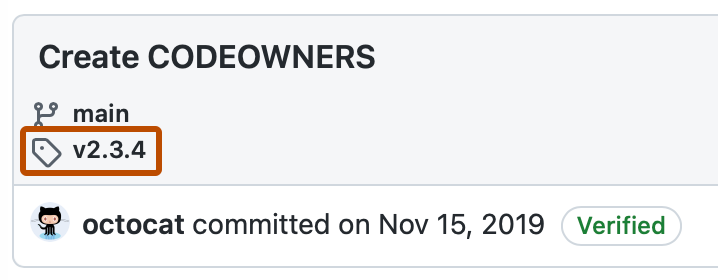
Commit pages can show labels for branches and tags that contain the commit. These labels help you understand where a commit appears in the repository history.
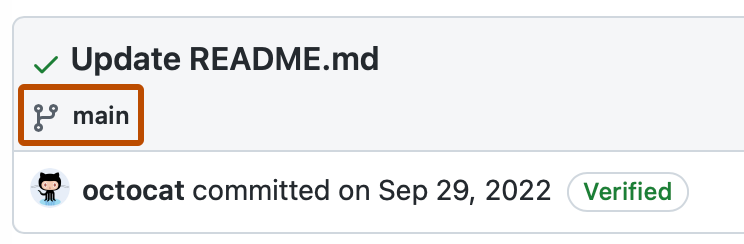
If your commit is not on the default branch (main), the label will show the branches which contain the commit. If the commit is part of an unmerged pull request, you can click the link to go to the pull request.
Once the commit is on the default branch, any tags that contain the commit will be shown and the default branch will be the only branch listed. See Git Basics - Tagging in the Git documentation.
Using the file tree
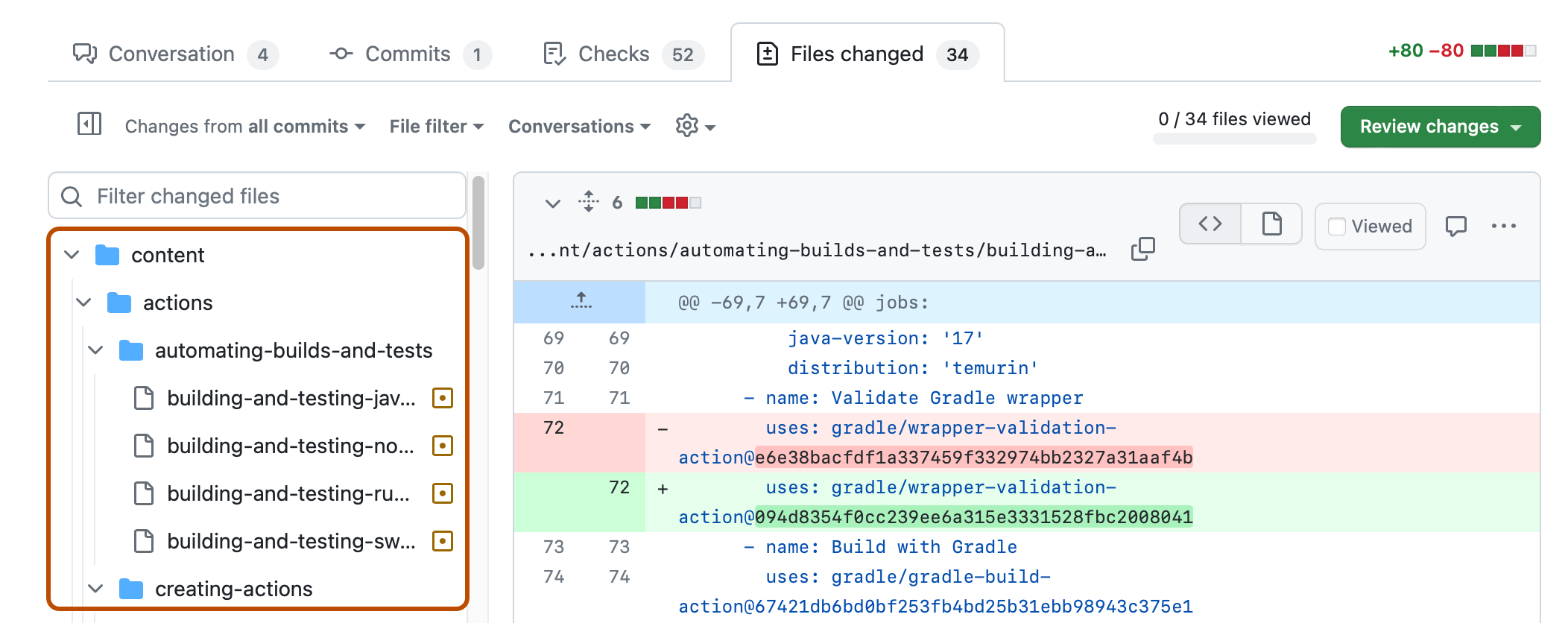
The file tree helps you navigate between files in a commit and focus on the diffs that matter. You can select a file to view its diff or filter by file path when a commit changes many files.
Note
The file tree will not display if your screen width is too narrow or if the commit only includes one file.
Further reading
- Committing and reviewing changes to your project in GitHub Desktop on GitHub Desktop